
Release a new image to a Deployment
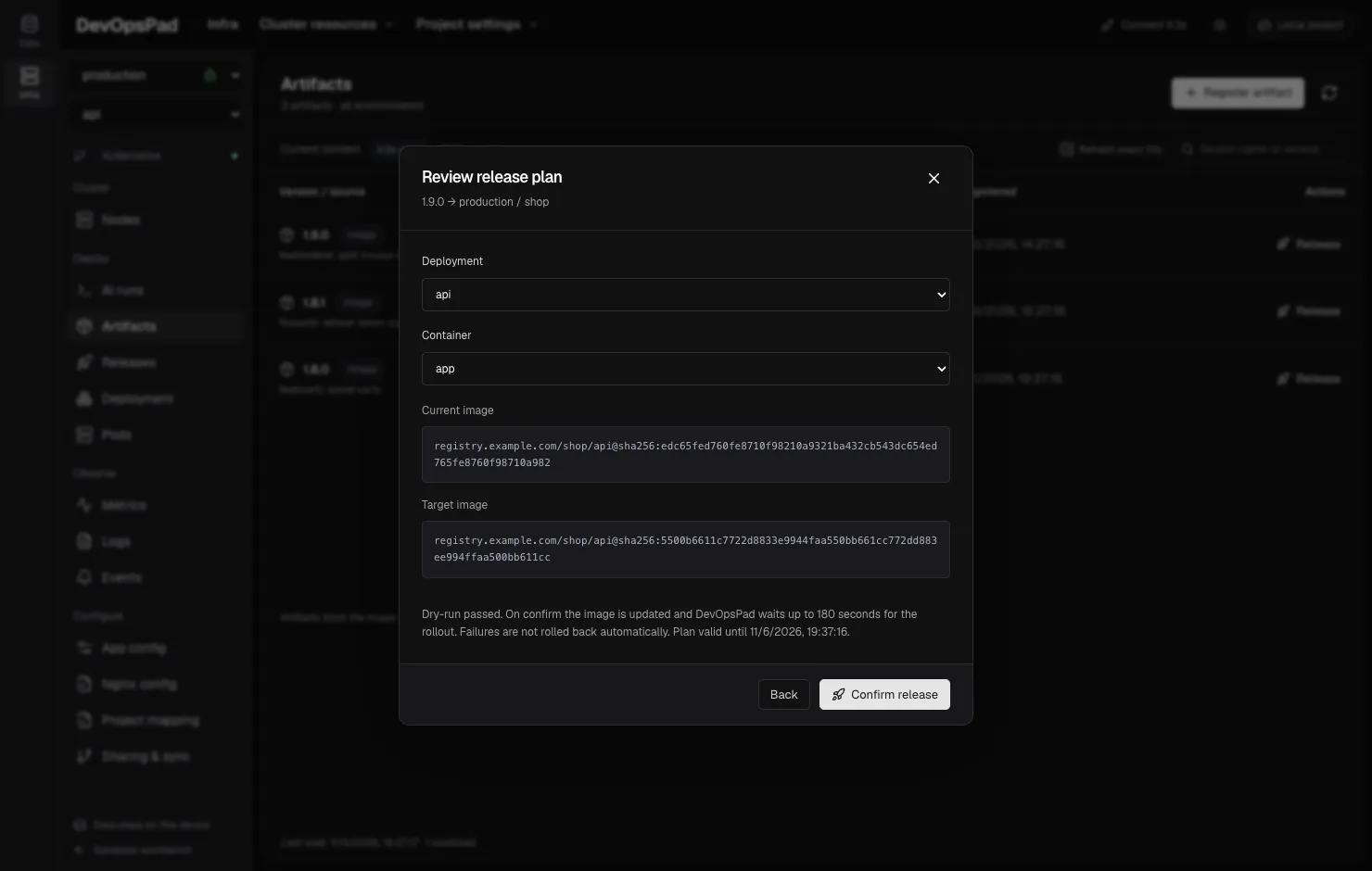
Choose an artifact under Artifacts and click Release. Pick an existing Deployment and container, then click Create release plan. DevOpsPad reads the current state, runs a Kubernetes server-side dry-run and shows the Current image next to the Target image. Click Confirm release to apply it; DevOpsPad then waits until the rollout is ready, for up to 180 seconds.
Only one container image changes. Replicas, other containers and the rest of the Pod template stay as they are. Every step is written to a release record in your project.
Steps
- Select the environment and application in the Infra sidebar.
- In Artifacts, find the version you want and click Release. If the list is empty, register an artifact first.
- In the Release artifact dialog, choose the Deployment and the Container.
- Click Create release plan. The dialog changes to Review release plan and shows both image references and the plan’s expiry time.
- Check the environment, namespace, Deployment, container and both digests. Use Back to change anything.
- Click Confirm release. The dialog shows “Running and waiting for the rollout…” until the rollout finishes or fails.
- Open Releases to see the record and its steps.
What happens under the hood
When you generate the plan, DevOpsPad reads the Deployment and binds the plan to the application’s selector, the namespace, the Deployment UID and resourceVersion, the container, the image digest and the cluster endpoint it read from. It then sends the change as a server-side dry-run, so admission errors surface before anything is written. The plan is kept only in memory, expires after 10 minutes and can be used once.
When you confirm, DevOpsPad:
- Acquires a
coordination.k8s.io/v1Lease in the target namespace, named after the Deployment. The lease is held for 300 seconds and the whole operation must finish within 180 seconds. A second DevOpsPad user releasing the same Deployment is blocked until the lease is released or expires. - Re-checks the Deployment’s UID and
resourceVersion. If someone changed or replaced it since the plan, the release stops. - Updates the container image and adds a
devopspad.io/releaseannotation to the Pod template. - Waits until the controller has observed the new generation and the updated, available and total replica counts match the desired count.
- Writes each step to
releases/<uuid>.json. If writing the record fails, execution stops.
Results
| Status | Meaning |
|---|---|
| Release complete | The rollout reached the desired state |
| Release incomplete | Timeout, connection loss or a concurrent change. Check the cluster’s real state |
| Running / unverified | The client stopped mid-release, for example after a crash. Verify before retrying |
DevOpsPad never retries or rolls back on its own. If a release is incomplete, refresh the Deployment page and decide what to do. Retrying blindly after an interrupted client is discouraged (“If the client was interrupted, refresh the cluster to check the actual state. Do not just retry.”).
Limits
- Only existing Deployments. StatefulSets and DaemonSets can be viewed but not released to. Creating or deleting workloads is not supported.
- One container per release.
- Other tools (kubectl, CI, GitOps controllers) do not respect DevOpsPad’s Lease. The
resourceVersioncheck still protects against overwriting their changes between plan and apply. - Clients must have reasonably synchronized clocks, because the lease uses timestamps.
- If a GitOps controller manages the Deployment, it may revert the image.
Permissions
The identity in the connection needs get, list and update on deployments in apps/v1, and get, create and update on leases in coordination.k8s.io. See RBAC permissions.
Frequently asked questions
Does DevOpsPad roll back automatically if a release fails?
No. A failed or timed-out release is recorded as incomplete and you are asked to check the cluster. You can then start a rollback yourself from a previous successful release.
How long is a release plan valid?
Ten minutes, and it can be executed only once. After that, generate a new plan so it reflects the cluster's current state.